|
|
| (4 intermediate revisions by 2 users not shown) |
| Line 3: |
Line 3: |
|
| |
|
|
| |
|
| <div style="color:#00000a;"></div>
| |
|
| |
|
| <div style="color:#00000a;"></div> | | <div style="color:#00000a;"></div> |
|
| |
|
| <div style="color:#00000a;"></div> | | <div style="color:#00000a;"></div> |
|
| |
|
| <div style="color:#00000a;"></div> | | <div style="color:#00000a;"></div> |
|
| |
|
| <div style="color:#00000a;"></div> | | <div style="color:#00000a;"></div> |
|
| |
|
| <div style="color:#00000a;"></div> | | <div style="color:#00000a;"></div> |
|
| |
|
| <div style="color:#00000a;"></div> | | <div style="color:#00000a;"></div> |
|
| |
|
| <div style="color:#00000a;"></div> | | <div style="color:#00000a;"></div> |
|
| |
|
| Samba AD
| | <div style="color:#00000a;"></div> |
|
| |
|
| As is Build for Domain Controller installation
| | CUPS (Common Unix Printing System) |
|
| |
|
| Date : 08.08.2016
| | Installation and configuration for CUPS |
|
| |
|
| Document Version : 1.0
| | Date : 25.08.2016 |
|
| |
|
| | Document Version : 1.0 |
|
| |
|
|
| |
|
|
| |
|
| Table of Contents[[#RefHeading2063957709649|1.Setup a Samba Active Directory Domain Controller4]]
| |
|
| |
|
| :[[#RefHeading2065957709649|1.1.Configure yum repository for Packages installation.4]]
| |
|
| |
|
| :[[#RefHeading2067957709649|1.2.Assign the Ipv4 address and restart the network services.5]]
| |
|
| |
|
| :[[#RefHeading2069957709649|1.3.Assign the Ipv6 address and restart the network services. And set hostname.6]] | | Table of Contents:[[#RefHeading3061179521510|Configure CUPS Printing3]] |
|
| |
|
| :[[#RefHeading2071957709649|1.4.Edit /etc/hosts file and make below entries.7]] | | :[[#RefHeading3091179521510|CUPS Web interface (Adding printers).6]] |
|
| |
|
| :[[#RefHeading2073957709649|1.5.Restart network service.8]] | | :[[#RefHeading96093905196|Testing printer (Print test page).9]] |
|
| |
|
| :[[#RefHeading2075957709649|1.6.Reboot server.9]] | | :[[#RefHeading96293905196|CUPS Integration with Samba.11]] |
|
| |
|
| :[[#RefHeading2077957709649|1.7.Install Dependencies for samba installation.9]]
| | == Configure CUPS Printing == |
|
| |
|
| :[[#RefHeading2079957709649|1.8.Dependencies Installation is completed.10]]
| | 1. Login to server, using root user and install CUPS. |
|
| |
|
| [[#RefHeading2081957709649|2.Samba Installation11]]
| | ''<nowiki># yum install cups*</nowiki>'' |
|
| |
|
| :[[#RefHeading2083957709649|2.1.Download samba file from https://www.samba.org/ and extract it.11]]
| |
|
| |
|
| :[[#RefHeading2085957709649|2.2.Enter in samba-4.4.4 directory and run configure command.11]]
| | [[Image:GSTNCUPS1.png]] |
|
| |
|
| :[[#RefHeading2087957709649|2.3.Run make command.13]]
| |
|
| |
|
| :[[#RefHeading2089957709649|2.4.Run make install command.14]]
| | 2. Edit cupsd.conf file. |
|
| |
|
| :[[#RefHeading2091957709649|2.5.Provision a new domain:14]]
| | ''<nowiki># vi /etc/cups/cupsd.conf</nowiki>'' |
|
| |
|
| :[[#RefHeading2093957709649|2.6.Provisioning completed successfully.15]]
| |
|
| |
|
| [[#RefHeading2095957709649|3.Initialisation16]]
| |
|
| |
|
| :[[#RefHeading2097957709649|3.1.Samba doesn't yet have init scripts included16]]
| |
|
| |
|
| :[[#RefHeading2099957709649|3.2.Set the permissions on samba4 file.19]]
| | [[Image:GSTNCUPS2.png]] |
|
| |
|
| :[[#RefHeading2101957709649|3.3.Restart samba19]]
| |
|
| |
|
| :[[#RefHeading2103957709649|3.4.Run "smbclient"20]]
| |
|
| |
|
| :[[#RefHeading2105957709649|3.5.Open /etc/named.conf file.21]]
| |
|
| |
|
| :[[#RefHeading2107957709649|3.6.DNS keytab22]]
| |
|
| |
|
| :[[#RefHeading2109957709649|3.7.Also make below entry in named.conf22]]
| |
|
| |
|
| :[[#RefHeading2111957709649|3.8.Change the owner ship as below and restart named services.23]]
| | 3. Make below entries and save file. |
|
| |
|
| :[[#RefHeading2113957709649|3.9.Copy Kerberos23]]<div style="color:#00000a;"></div>
| |
|
| |
|
| = {{anchor|RefHeading2063957709649}} Setup a Samba Active Directory Domain Controller =
| | ''MaxLogSize 1m'' |
|
| |
|
| == {{anchor|RefHeading2065957709649}} Configure yum repository for Packages installation. ==
| | ''LogLevel debug'' |
|
| |
|
| <div style="color:#00000a;">Edit /etc/yum.repos.d/local.repo </div> | | ''<nowiki># Allow remote access</nowiki>'' |
|
| |
|
| <div style="color:#00000a;"><nowiki># vi /etc/yum.repos.d/local.repo </nowiki></div>
| | ''Listen localhost:631'' |
|
| |
|
| | ''Listen 172.18.101.14:631'' |
|
| |
|
| [[Image:]]
| | ''Listen 2404:a800:1000:d:7800::e:631'' |
|
| |
|
| <div style="color:#00000a;">Make below entries. Save file and exit.</div>
| | ''Listen /var/run/cups/cups.sock'' |
|
| |
|
| <div style="color:#00000a;">[local]</div>
| | ''Browsing On'' |
|
| |
|
| | ''BrowseLocalProtocols dnssd'' |
|
| |
|
| <div style="color:#00000a;">name=local</div>
| | ''DefaultAuthType Basic'' |
|
| |
|
| | ''WebInterface Yes'' |
|
| |
|
| <div style="color:#00000a;">baseurl=file:///mnt</div> | | ''<Location />'' |
|
| |
|
| | <div style="color:#00000a;">''<nowiki># Allow remote administration...</nowiki>''</div> |
|
| |
|
| <div style="color:#00000a;">gpgcheck=0</div> | | <div style="color:#00000a;">''Order allow,deny''</div> |
|
| |
|
| | <div style="color:#00000a;">''Allow localhost''</div> |
|
| |
|
| <div style="color:#00000a;">enabled=1</div> | | <div style="color:#00000a;">''Allow 172.18.5.0/24''</div> |
|
| |
|
| | ''</Location>'' |
|
| |
|
| | ''<Location /admin>'' |
|
| |
|
| | <div style="color:#00000a;">''<nowiki># Allow remote administration...</nowiki>''</div> |
|
| |
|
| [[Image:]]
| | <div style="color:#00000a;">''Order allow,deny''</div> |
|
| |
|
| | <div style="color:#00000a;">''Allow localhost''</div> |
|
| |
|
| == {{anchor|RefHeading2067957709649}} Assign the Ipv4 address and restart the network services. == | | <div style="color:#00000a;">''Allow 172.18.5.0/24''</div> |
|
| |
|
| <div style="color:#00000a;"><nowiki># nmcli connection modify eth0 ipv4.addresses 172.18.101.14/24 ipv4.method manual ipv4.gateway 172.18.101.1 connection.autoconnect yes ipv4.dns 172.18.101.14</nowiki></div>
| | ''</Location>'' |
|
| |
|
| <div style="color:#00000a;"><nowiki># systemctl restart network.service</nowiki></div> | | ''<Location /admin/conf>'' |
|
| |
|
| | <div style="color:#00000a;">''AuthType Default''</div> |
|
| |
|
| [[Image:]]
| | <div style="color:#00000a;">''Require user @SYSTEM''</div> |
|
| |
|
| | <div style="color:#00000a;">''<nowiki># Allow remote access to the configuration files...</nowiki>''</div> |
|
| |
|
| == {{anchor|RefHeading2069957709649}} Assign the Ipv6 address and restart the network services. And set hostname. == | | <div style="color:#00000a;">''Order allow,deny''</div> |
|
| |
|
| <div style="color:#00000a;"><nowiki># nmcli connection modify eth0 ipv6.addresses 2404:a800:1000:d:7800::e/69 ipv6.method manual ipv6.gateway 2404:a800:1000:d:7800::1 connection.autoconnect yes ipv6.dns 2404:a800:1000:d:7800::e</nowiki></div> | | <div style="color:#00000a;">''Allow localhost''</div> |
|
| |
|
| | <div style="color:#00000a;">''Allow 172.18.5.0/24''</div> |
|
| |
|
| <div style="color:#00000a;"><nowiki># hostnamectl set-hostname gd9103.gstn.local</nowiki></div>
| |
|
| |
|
|
| |
|
| [[Image:]]== {{anchor|RefHeading2071957709649}} Edit /etc/hosts file and make below entries. ==
| |
|
| |
|
| <div style="color:#00000a;"><nowiki># vi /etc/hosts</nowiki></div>
| |
|
| |
|
| <div style="color:#00000a;">172.18.101.14gd9103.gstn.localgd9103</div>
| |
|
| |
|
|
| |
|
| <div style="color:#00000a;"></div>
| |
|
| |
|
| <div style="color:#00000a;">2404:a800:1000:d:7800::egd9103.gstn.localgd9103</div>
| |
|
| |
|
|
| |
|
|
| |
|
|
| |
|
| [[Image:]]
| |
|
| |
|
|
| |
|
| == {{anchor|RefHeading2073957709649}} Restart network service. ==
| |
|
| |
|
| <div style="color:#00000a;"><nowiki># systemctl restart network.service</nowiki></div>
| |
|
| |
|
|
| |
|
| [[Image:]]
| |
|
| |
|
|
| |
|
| == {{anchor|RefHeading2075957709649}} Reboot server. ==
| |
|
| |
|
| <div style="color:#00000a;"><nowiki># init 6</nowiki></div>
| |
|
| |
|
|
| |
|
| [[Image:]]== {{anchor|RefHeading2077957709649}} Install Dependencies for samba installation. ==
| |
|
| |
|
|
| |
|
|
| |
|
| <div style="color:#00000a;"><nowiki># yum install perl gcc attr libacl-devel libblkid-devel gnutls-devel readline-devel python-devel gdb pkgconfig krb5-workstation zlib-devel setroubleshoot-server libaio-devel setroubleshoot-plugins policycoreutils-python libsemanage-python perl-ExtUtils-MakeMaker perl-Parse-Yapp perl-Test-Base popt-devel libxml2-devel libattr-devel keyutils-libs-devel cups-devel bind-utils libxslt docbook-style-xsl openldap-devel autoconf python-crypto pam-devel</nowiki></div>
| |
|
| |
|
|
| |
|
| [[Image:]]== {{anchor|RefHeading2079957709649}} Dependencies Installation is completed. ==
| |
|
| |
|
|
| |
|
|
| |
|
| [[Image:]]
| |
|
| |
|
|
| |
|
| <div style="color:#00000a;"></div>= {{anchor|RefHeading2081957709649}} Samba Installation =
| | [[Image:GSTNCUPS3.png]] |
|
| |
|
| == {{anchor|RefHeading2083957709649}} Download samba file from [https://www.samba.org/ https://www.samba.org/] and extract it. ==
| | 4. Restart cups service. |
|
| |
|
| <div style="color:#00000a;"><nowiki># tar xvzf samba-4.4.4.tar.gz</nowiki></div>
| | ''<nowiki># systemctl restart cups.service </nowiki>'' |
|
| |
|
|
| |
|
| [[Image:]]== {{anchor|RefHeading2085957709649}} Enter in samba-4.4.4 directory and run configure command. == | | <div style="color:#00000a;">[[Image:GSTNCUPS4.png]]</div> |
|
| |
|
|
| |
|
| | <div style="color:#00000a;"></div> |
|
| |
|
| <div style="color:#00000a;"><nowiki># cd samba-4.4.4/</nowiki></div> | | <div style="color:#00000a;"></div> |
|
| |
|
| <div style="color:#00000a;"><nowiki># ./configure</nowiki></div> | | <div style="color:#00000a;"></div> |
|
| |
|
| | <div style="color:#00000a;"></div> |
|
| |
|
| [[Image:]]
| | <div style="color:#00000a;"></div> |
|
| |
|
| | == CUPS Web interface (Adding printers). == |
|
| |
|
| <div style="color:#00000a;">Now configure done successfully.</div> | | <div style="color:#00000a;">1. Now open the web browser and open link <span style="color:#3333ff;">''https://172.18.101.14:631</span>.''</div> |
|
| |
|
| | From here we can add and manage printers. to add a new printer click '''''“Administration”'''''. |
|
| |
|
| [[Image:]] | | [[Image:GSTNCUPS5.png]] |
|
| |
|
| | <div style="color:#00000a;">2. Click and “'''''Add Printer”''''' and type root username and password of the cups server:</div> |
|
| |
|
| == {{anchor|RefHeading2087957709649}} Run make command. ==
| |
|
| |
|
| <div style="color:#00000a;"><nowiki># make</nowiki></div>
| | [[Image:GSTNCUPS6.png]] |
|
| |
|
|
| |
|
| [[Image:]]
| | <div style="color:#00000a;"></div> |
|
| |
|
| <div style="color:#00000a;">Make command finished successfully.</div> | | <div style="color:#00000a;">3. Select '''“''AppSocket/HP JetDirect''”''' (here i have Hp Laserjet Pro m202dw printers) and click '''''Continue''. '''</div> |
|
| |
|
|
| |
|
| | [[Image:GSTNCUPS7.png]] |
|
| |
|
| | <div style="color:#00000a;">4. In connection tab type the '''''ipp://172.18.5.67:631/ipp''''' (172.18.5.67 is printer IP) and click ''Continue''.</div> |
|
| |
|
| [[Image:]]== {{anchor|RefHeading2089957709649}} Run make install command. ==
| |
|
| |
|
| <div style="color:#00000a;"><nowiki># make install</nowiki></div>
| | [[Image:GSTNCUPS8.png]] |
|
| |
|
|
| |
|
| [[Image:]]== {{anchor|RefHeading2091957709649}} Provision a new domain: ==
| |
|
| |
|
|
| |
|
| | <div style="color:#00000a;">5. Fill the required information and click on “'''''Share This Printer''''' “ and click on “'''''Continue'''''”.</div> |
|
| |
|
| <div style="color:#00000a;"><nowiki># /usr/local/samba/bin/samba-tool domain provision --use-rfc2307 --interactive</nowiki></div>
| | [[Image:GSTNCUPS9.png]] |
|
| |
|
| | <div style="color:#00000a;">6. Select the '''“''Generic''”''' print driver and click on '''''“continue”'''''.</div> |
|
| |
|
| [[Image:]]== {{anchor|RefHeading2093957709649}} Provisioning completed successfully. == | | [[Image:GSTNCUPS10.png]] |
|
| |
|
|
| |
|
|
| |
|
| [[Image:]]
| |
|
| |
|
|
| |
|
| = {{anchor|RefHeading2095957709649}} Initialisation =
| |
|
| |
|
| == {{anchor|RefHeading2097957709649}} Samba doesn't yet have init scripts included ==
| |
|
| |
|
| # we can copy script from below link. [https://wiki.samba.org/index.php/Samba4/InitScript https://wiki.samba.org/index.php/Samba4/InitScript]
| |
| # create a file /etc/rc.d/init.d/samba4
| |
|
| |
|
| | <div style="color:#00000a;">7. Select the model '''“''Generic PCL Laser Printer(en)''” '''and click on '''''“Add Printer”.'''''</div> |
|
| |
|
| | Now printer configuration has been done. |
|
| |
|
| <div style="color:#00000a;"></div>
| | [[Image:GSTNCUPS11.png]] |
|
| |
|
| <div style="color:#00000a;"><nowiki># vi /etc/rc.d/init.d/samba4</nowiki></div>
| | == Testing printer (Print test page). == |
|
| |
|
| | <div style="color:#00000a;">1. Click on ''“'''Printers'''” ''tab''. ''Here we can see the installed printers click on printer which we want to test.</div> |
|
| |
|
| <div style="color:#00000a;">and paste the below content in this file. </div>
| | [[Image:GSTNCUPS12.png]] |
|
| |
|
| <div style="color:#00000a;">________________________________</div>
| |
|
| |
|
| <div style="color:#00000a;"><nowiki>#! /bin/bash</nowiki></div> | | <div style="color:#00000a;">2. Click on''''' “Maintenance” '''''and select “'''''Print Test Page'''''”.</div> |
|
| |
|
| <div style="color:#00000a;"><nowiki>#</nowiki></div>
| | [[Image:GSTNCUPS13.png]] |
|
| |
|
| <div style="color:#00000a;"><nowiki># samba4 Bring up/down samba4 service</nowiki></div>
| |
|
| |
|
| <div style="color:#00000a;"><nowiki>#</nowiki></div> | | <div style="color:#00000a;">3. Page will say that “''Test page sent:''”</div> |
|
| |
|
| <div style="color:#00000a;"><nowiki># chkconfig: - 90 10</nowiki></div>
| |
|
| |
|
| <div style="color:#00000a;"><nowiki># description: Activates/Deactivates all samba4 interfaces configured to \</nowiki></div>
| | [[Image:GSTNCUPS14.png]] |
|
| |
|
| <div style="color:#00000a;"><nowiki># start at boot time.</nowiki></div>
| |
|
| |
|
| <div style="color:#00000a;"><nowiki>#</nowiki></div>
| |
|
| |
|
| <div style="color:#00000a;"><nowiki>### BEGIN INIT INFO</nowiki></div>
| |
|
| |
|
| <div style="color:#00000a;"><nowiki># Provides:</nowiki></div>
| |
|
| |
|
| <div style="color:#00000a;"><nowiki># Should-Start:</nowiki></div>
| |
|
| |
|
| <div style="color:#00000a;"><nowiki># Short-Description: Bring up/down samba4</nowiki></div>
| |
|
| |
|
| <div style="color:#00000a;"><nowiki># Description: Bring up/down samba4</nowiki></div>
| |
|
| |
|
| <div style="color:#00000a;"><nowiki>### END INIT INFO</nowiki></div>
| |
|
| |
|
| <div style="color:#00000a;"><nowiki># Source function library.</nowiki></div>
| |
|
| |
|
| <div style="color:#00000a;">. /etc/init.d/functions</div>
| | == CUPS Integration with Samba. == |
|
| |
|
| <div style="color:#00000a;">if [ -f /etc/sysconfig/samba4 ]; then</div> | | <div style="color:#00000a;">To integrate cups with samba we can follow below steps.</div> |
|
| |
|
| <div style="color:#00000a;">. /etc/sysconfig/samba4</div> | | <div style="color:#00000a;">1. Open “'''''/usr/local/samba/etc/smb.conf'''''” file.</div> |
|
| |
|
| <div style="color:#00000a;">fi</div> | | ''<nowiki># vi /usr/local/samba/etc/smb.conf</nowiki>'' |
|
| |
|
| <div style="color:#00000a;">CWD=$(pwd)</div>
| | [[Image:GSTNCUPS15.png]] |
|
| |
|
| <div style="color:#00000a;">prog="samba4"</div>
| |
|
| |
|
| <div style="color:#00000a;">start() {</div>
| |
|
| |
|
| <div style="color:#00000a;"><nowiki># Attach irda device</nowiki></div>
| |
|
| |
|
| <div style="color:#00000a;">echo -n $"Starting $prog: "</div>
| |
|
| |
|
| <div style="color:#00000a;">/usr/local/samba/sbin/samba</div>
| |
|
| |
|
| <div style="color:#00000a;">sleep 2</div>
| |
|
| |
|
| <div style="color:#00000a;">if ps ax | grep -v "grep" | grep -q /samba/sbin/samba ; then success $"samba4 startup"; else failure $"samba4 startup"; fi</div>
| |
|
| |
|
| <div style="color:#00000a;">echo</div>
| |
|
| |
|
| <div style="color:#00000a;">}</div>
| |
|
| |
|
| <div style="color:#00000a;">stop() {</div>
| |
|
| |
|
| <div style="color:#00000a;"><nowiki># Stop service.</nowiki></div>
| |
|
| |
|
| <div style="color:#00000a;">echo -n $"Shutting down $prog: "</div>
| |
|
| |
|
| <div style="color:#00000a;">killall samba</div>
| |
|
| |
|
| <div style="color:#00000a;">sleep 2</div>
| |
|
| |
|
| <div style="color:#00000a;">if ps ax | grep -v "grep" | grep -q /samba/sbin/samba ; then failure $"samba4 shutdown"; else success $"samba4 shutdown"; fi</div>
| |
|
| |
|
| <div style="color:#00000a;">echo</div> | | <div style="color:#00000a;">2. Make below entry in '''''smb.conf''''' file in Global section.</div> |
|
| |
|
| <div style="color:#00000a;">}</div> | | <div style="color:#00000a;">''rpc_server:spoolss = external''</div> |
|
| |
|
| <div style="color:#00000a;">status() {</div> | | <div style="color:#00000a;">''rpc_daemon:spoolssd = fork''</div> |
|
| |
|
| <div style="color:#00000a;">/usr/local/samba/sbin/samba --show-build</div> | | <div style="color:#00000a;">''spoolss: architecture = Windows x64''</div> |
|
| |
|
| <div style="color:#00000a;">}</div>
| |
|
| |
|
| <div style="color:#00000a;"><nowiki># See how we were called.</nowiki></div>
| | [[Image:GSTNCUPS16.png]] |
|
| |
|
| <div style="color:#00000a;">case "$1" in</div>
| |
|
| |
|
| <div style="color:#00000a;">start)</div>
| |
|
| |
|
| <div style="color:#00000a;">start</div>
| |
|
| |
|
| <div style="color:#00000a;"><nowiki>;;</nowiki></div>
| |
|
| |
|
| <div style="color:#00000a;">stop)</div>
| |
|
| |
|
| <div style="color:#00000a;">stop</div>
| |
|
| |
|
| <div style="color:#00000a;"><nowiki>;;</nowiki></div>
| |
|
| |
|
| <div style="color:#00000a;">status)</div>
| |
|
| |
|
| <div style="color:#00000a;">status irattach</div>
| |
|
| |
|
| <div style="color:#00000a;"><nowiki>;;</nowiki></div>
| |
|
| |
|
| <div style="color:#00000a;">restart|reload)</div>
| |
|
| |
|
| <div style="color:#00000a;">stop</div>
| |
|
| |
|
| <div style="color:#00000a;">start</div>
| |
|
| |
|
| <div style="color:#00000a;"><nowiki>;;</nowiki></div> | | <div style="color:#00000a;"></div> |
|
| |
|
| <div style="color:#00000a;"><nowiki>*)</nowiki></div> | | <div style="color:#00000a;">3. Create the Samba spool directory and set permission. </div> |
|
| |
|
| <div style="color:#00000a;">echo $"Usage: $0 {start|stop|restart|status}"</div> | | ''<nowiki># mkdir -p /var/spool/samba4/ ; chmod 1777 /var/spool/samba4/</nowiki>'' |
|
| |
|
| <div style="color:#00000a;">exit 1</div>
| |
|
| |
|
| <div style="color:#00000a;">esac</div>
| | [[Image:GSTNCUPS17.png]] |
|
| |
|
| <div style="color:#00000a;">exit 0</div>
| |
|
| |
|
| <div style="color:#00000a;">______________________________________________________________________________</div> | | <div style="color:#00000a;">4. Open again '''''/usr/local/samba/etc/smb.conf '''''file and make below entries.</div> |
|
| |
|
|
| |
|
| [[Image:]] | | ''[ProLaserJet]'' |
|
| |
|
| | <div style="color:#00000a;">''comment = ProLaserJet''</div> |
|
| |
|
| | <div style="color:#00000a;">''path = /var/spool/samba4/''</div> |
|
| |
|
| | <div style="color:#00000a;">''browseable = yes''</div> |
|
| |
|
| | <div style="color:#00000a;">''printable = yes''</div> |
|
| |
|
| | <div style="color:#00000a;">''printer name = ProLaserJet''</div> |
|
| |
|
|
| |
|
| | ''[ProLaserJet2]'' |
|
| |
|
| | <div style="color:#00000a;">''comment = ProLaserJet2''</div> |
|
| |
|
| | <div style="color:#00000a;">''path = /var/spool/samba4/''</div> |
|
| |
|
| | <div style="color:#00000a;">''browseable = yes''</div> |
|
| |
|
| | <div style="color:#00000a;">''printable = yes''</div> |
|
| |
|
| | <div style="color:#00000a;">''printer name = ProLaserJet2''</div> |
|
| |
|
|
| |
|
| | [[Image:GSTNCUPS18.png]] |
|
| |
|
|
| |
|
| | <div style="color:#00000a;"></div> |
|
| |
|
| | <div style="color:#00000a;"></div> |
|
| |
|
| | <div style="color:#00000a;"></div> |
|
| |
|
| | <div style="color:#00000a;"></div> |
|
| |
|
| | <div style="color:#00000a;"></div> |
|
| |
|
| | <div style="color:#00000a;"></div> |
|
| |
|
| | <div style="color:#00000a;">5. Restart samba service.</div> |
|
| |
|
| | <div style="color:#00000a;">''<nowiki># systemctl stop samba4.service</nowiki>'' </div> |
|
| |
|
| | [[Image:GSTNCUPS19.png]] |
|
| |
|
|
| |
|
|
| |
|
|
| |
|
| | <div style="color:#00000a;">''<nowiki># systemctl start samba4.service</nowiki>'' </div> |
|
| |
|
|
| |
|
| | | [[Image:GSTNCUPS20.png]] |
| | |
| | |
| | |
| | |
| | |
| | |
| | |
| == {{anchor|RefHeading2099957709649}} Set the permissions on samba4 file. ==
| |
| | |
| <div style="color:#00000a;"><nowiki># chmod 755 /etc/rc.d/init.d/samba4</nowiki></div>
| |
| | |
| <div style="color:#00000a;"><nowiki># chmod +x /etc/rc.d/init.d/samba4</nowiki></div>
| |
| | |
| <div style="color:#00000a;"><nowiki># ln -s /etc/rc.d/init.d/samba4 /etc/rc3.d/S80samba4</nowiki></div>
| |
| | |
| <div style="color:#00000a;"><nowiki># chkconfig --add samba4</nowiki></div>
| |
| | |
| <div style="color:#00000a;"><nowiki># chkconfig samba4 on</nowiki></div>
| |
| | |
| | |
| [[Image:]]== {{anchor|RefHeading2101957709649}} Restart samba == | |
| | |
| <div style="color:#00000a;"><nowiki># service samba4 restart</nowiki></div>
| |
| | |
| <div style="color:#00000a;">or ''systemctl start samba4.service''</div>
| |
| | |
| | |
| [[Image:]]
| |
| | |
| | |
| == {{anchor|RefHeading2103957709649}} Run "smbclient" ==
| |
| | |
| <div style="color:#00000a;">This is done to check if Samba provides the AD DC default shares "netlogon" and "sysvol", that were created in "smb.conf" during provisioning.</div>
| |
| | |
| | |
| <div style="color:#00000a;"><nowiki># /usr/local/samba/bin/smbclient -L localhost -U%</nowiki></div>
| |
| | |
| | |
| [[Image:]]== {{anchor|RefHeading2105957709649}} Open /etc/named.conf file. ==
| |
| | |
| | |
| | |
| <div style="color:#00000a;"><nowiki># vi /etc/named.conf</nowiki></div>
| |
| | |
| | |
| [[Image:]]== {{anchor|RefHeading2107957709649}} DNS keytab ==
| |
| | |
| <div style="color:#00000a;">This file was automatically created during provisioning/updating. Add the following' tkey-gssapi-keytab' option to the 'options' section of your named.conf, and set other values as shown in screen shot.</div>
| |
| | |
| | |
| tkey-gssapi-keytab "/usr/local/samba/private/dns.keytab";
| |
| | |
| | |
| | |
| | |
| [[Image:]]== {{anchor|RefHeading2109957709649}} Also make below entry in named.conf ==
| |
| | |
| <div style="color:#00000a;"></div>
| |
| | |
| include "/usr/local/samba/private/named.conf";
| |
| | |
| | |
| [[Image:]]== {{anchor|RefHeading2111957709649}} Change the owner ship as below and restart named services. ==
| |
| | |
| <div style="color:#00000a;"><nowiki># chown named.named /var/named/</nowiki></div>
| |
| | |
| <div style="color:#00000a;"><nowiki># chgrp named /usr/local/samba/private/dns.keytab</nowiki></div>
| |
| | |
| <div style="color:#00000a;"><nowiki># chmod g+r /usr/local/samba/private/dns.keytab</nowiki></div>
| |
| | |
| <div style="color:#00000a;"><nowiki># systemctl enable named.service</nowiki></div>
| |
| | |
| <div style="color:#00000a;"><nowiki># systemctl restart named.service</nowiki></div>== {{anchor|RefHeading2113957709649}} Copy Kerberos ==
| |
| | |
| <div style="color:#00000a;">file /usr/local/samba/private/krb5.conf to /etc/krb5.conf</div>
| |
| | |
| <div style="color:#00000a;"><nowiki># cp /etc/krb5.conf /etc/krb5.conf.ori</nowiki></div>
| |
| | |
| | |
| <div style="color:#00000a;"><nowiki># cp /usr/local/samba/private/krb5.conf /etc/krb5.conf</nowiki></div>
| |
| | |
| | |
| | |
| | |
| | |
| | |
| | |
| | |
| | |
| | |
| | |
| | |
| | |
| | |
| | |
| | |
| | |
| | |
| | |
| | |
| | |
| | |
| | |
| | |
| | |
| | |
| | |
| | |
| | |
| | |
| [[Image:]]
| |
| | |
| | |
| <div style="color:#00000a;"></div>
| |
CUPS (Common Unix Printing System)
Installation and configuration for CUPS
Date : 25.08.2016
Document Version : 1.0
Table of Contents:Configure CUPS Printing3
:CUPS Web interface (Adding printers).6
:Testing printer (Print test page).9
:CUPS Integration with Samba.11
== Configure CUPS Printing ==
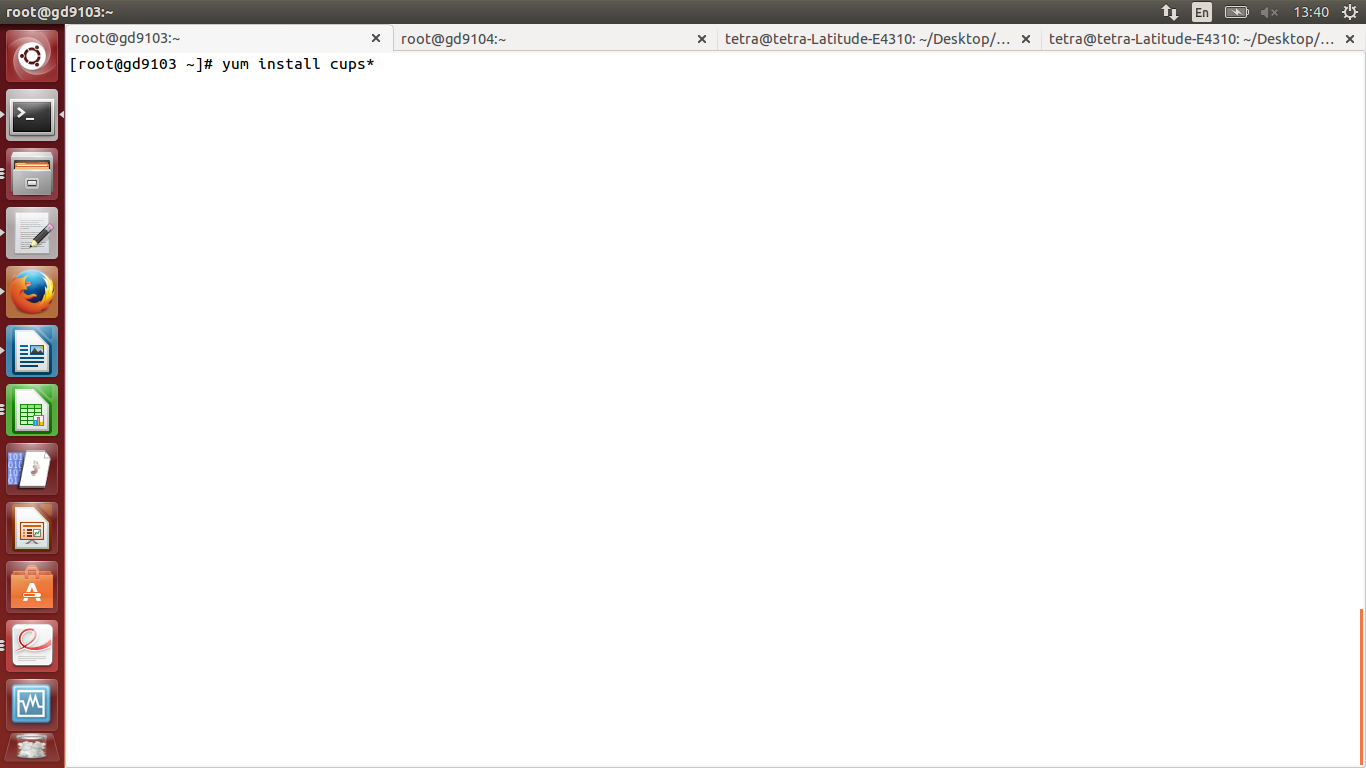
1. Login to server, using root user and install CUPS.
# yum install cups*
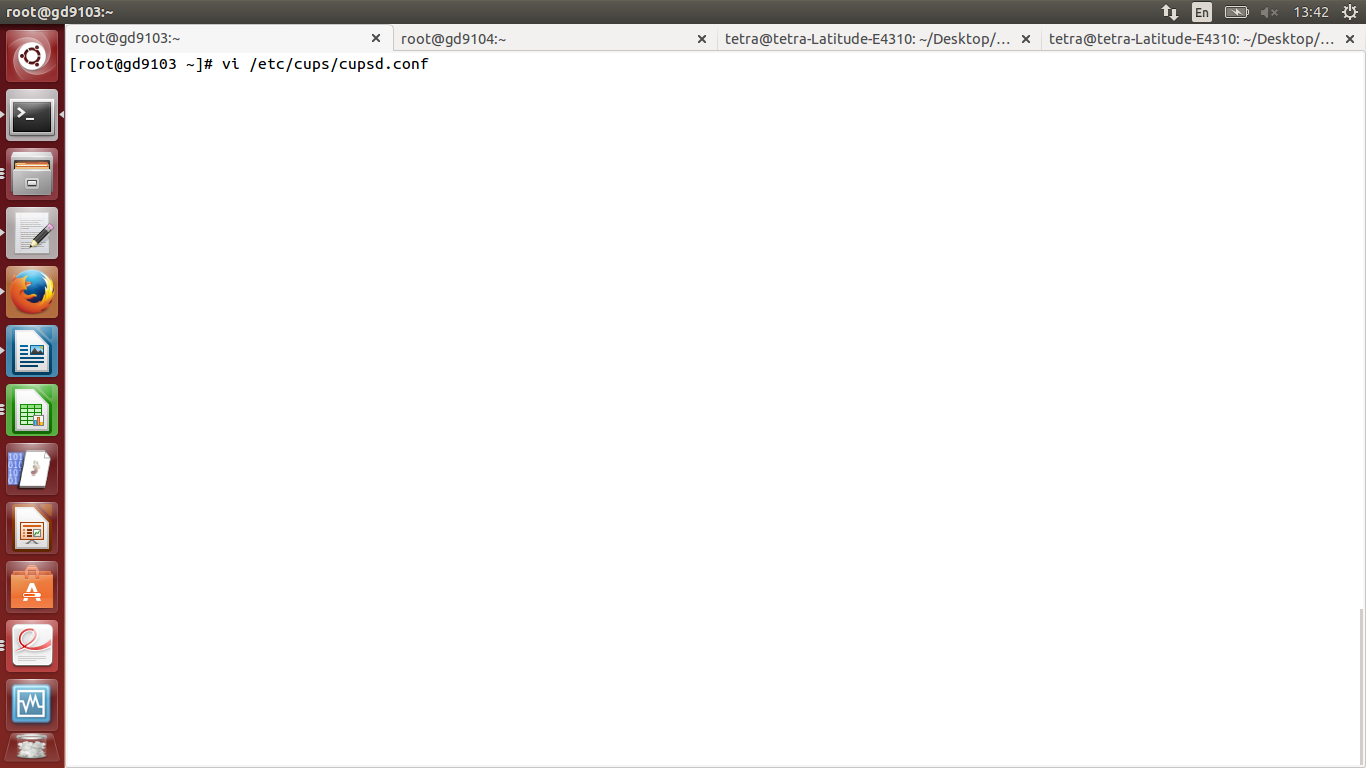
2. Edit cupsd.conf file.
# vi /etc/cups/cupsd.conf
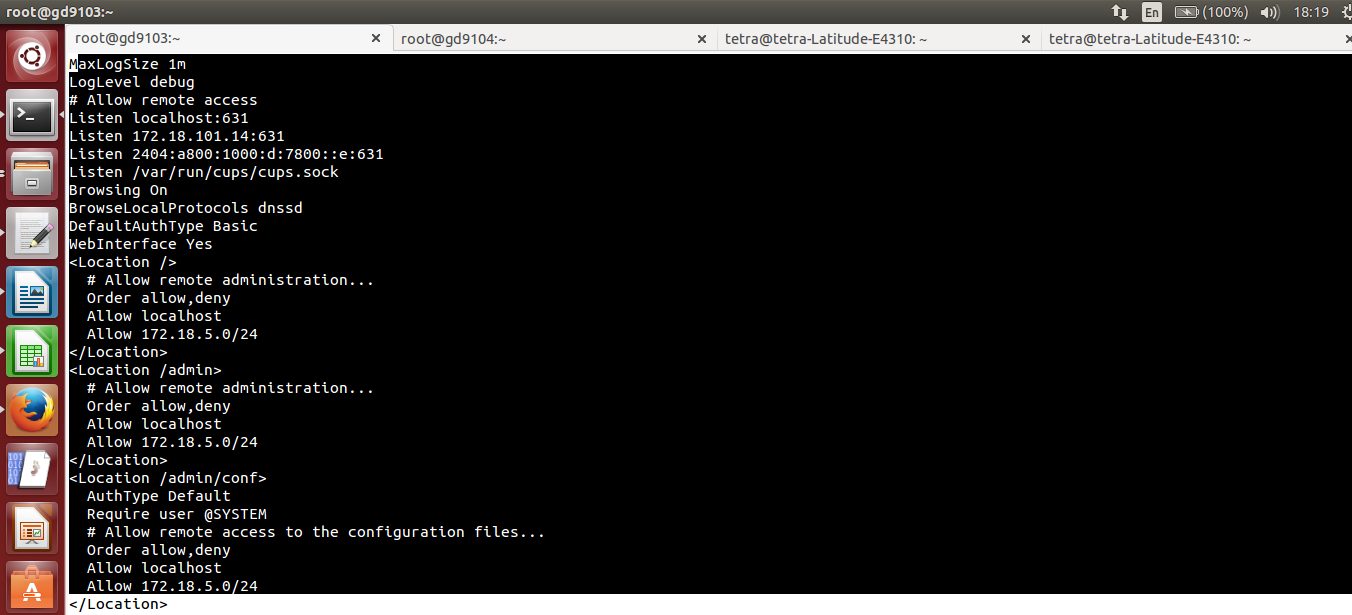
3. Make below entries and save file.
MaxLogSize 1m
LogLevel debug
# Allow remote access
Listen localhost:631
Listen 172.18.101.14:631
Listen 2404:a800:1000:d:7800::e:631
Listen /var/run/cups/cups.sock
Browsing On
BrowseLocalProtocols dnssd
DefaultAuthType Basic
WebInterface Yes
<Location />
# Allow remote administration...
Order allow,deny
Allow localhost
Allow 172.18.5.0/24
</Location>
<Location /admin>
# Allow remote administration...
Order allow,deny
Allow localhost
Allow 172.18.5.0/24
</Location>
<Location /admin/conf>
AuthType Default
Require user @SYSTEM
# Allow remote access to the configuration files...
Order allow,deny
Allow localhost
Allow 172.18.5.0/24
4. Restart cups service.
# systemctl restart cups.service
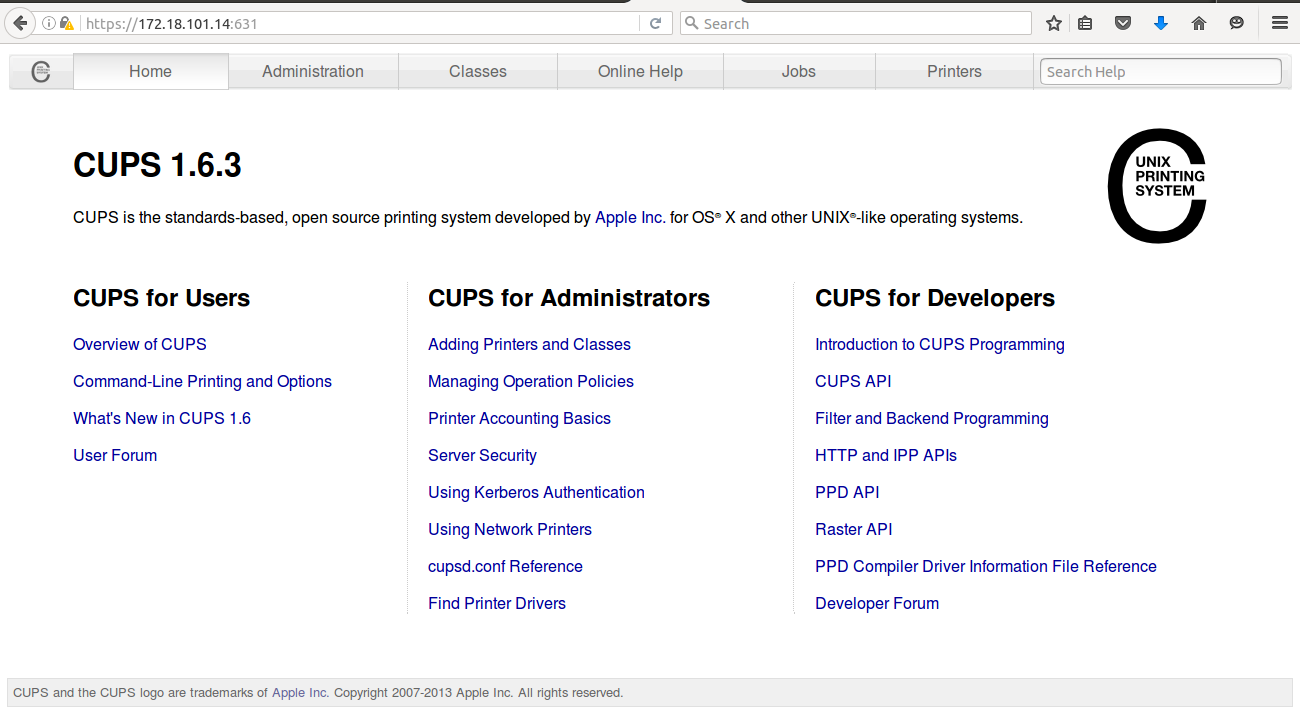
== CUPS Web interface (Adding printers). ==
From here we can add and manage printers. to add a new printer click “Administration”.
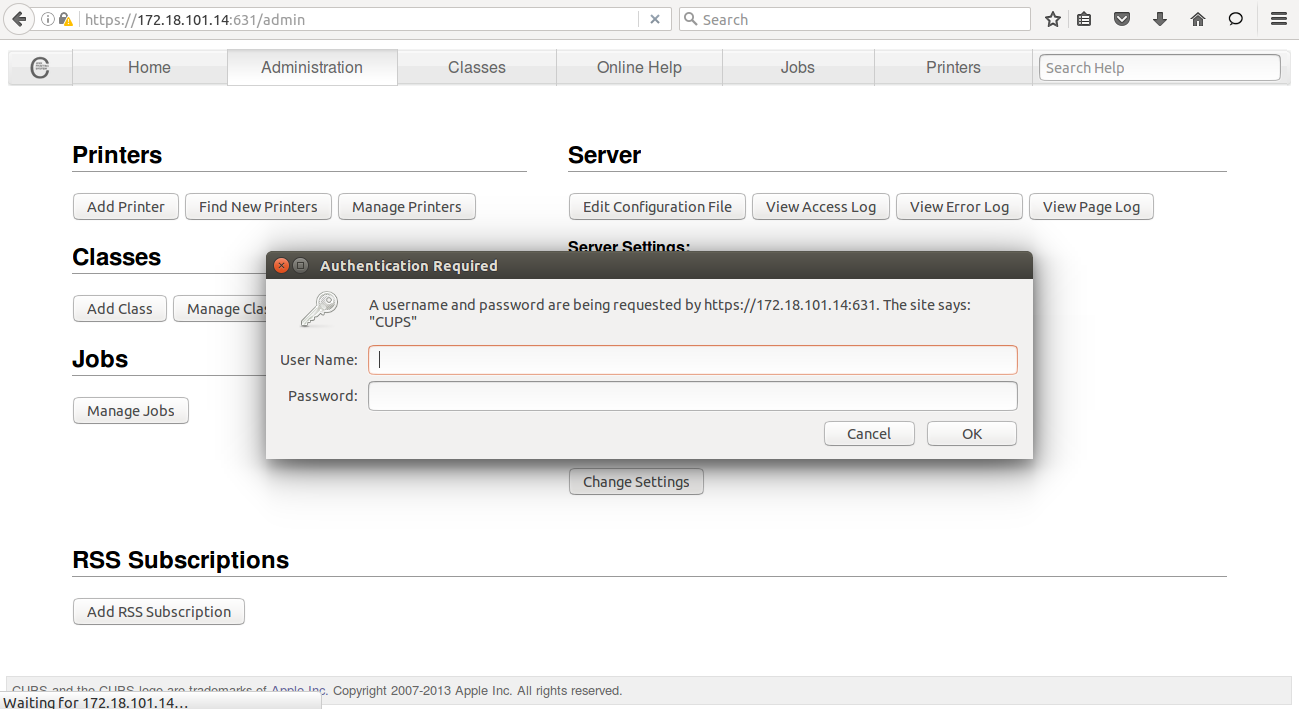
2. Click and “Add Printer” and type root username and password of the cups server:
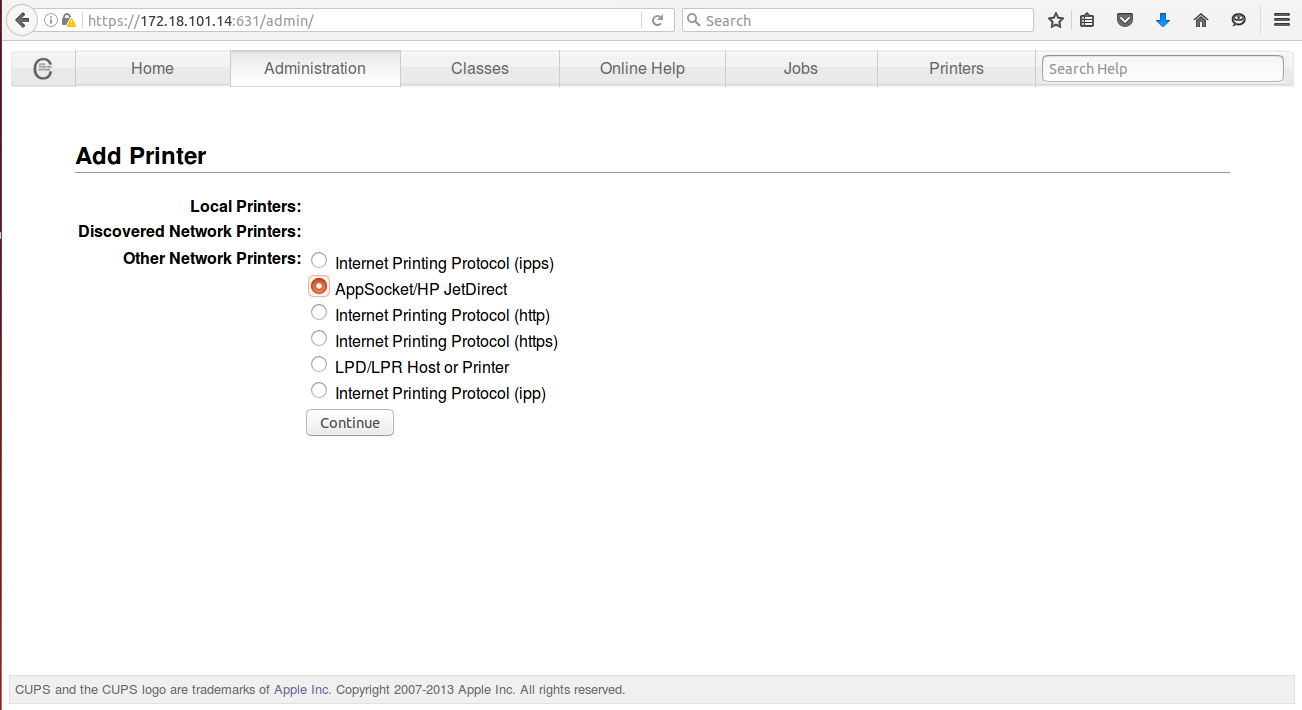
3. Select “AppSocket/HP JetDirect” (here i have Hp Laserjet Pro m202dw printers) and click Continue.
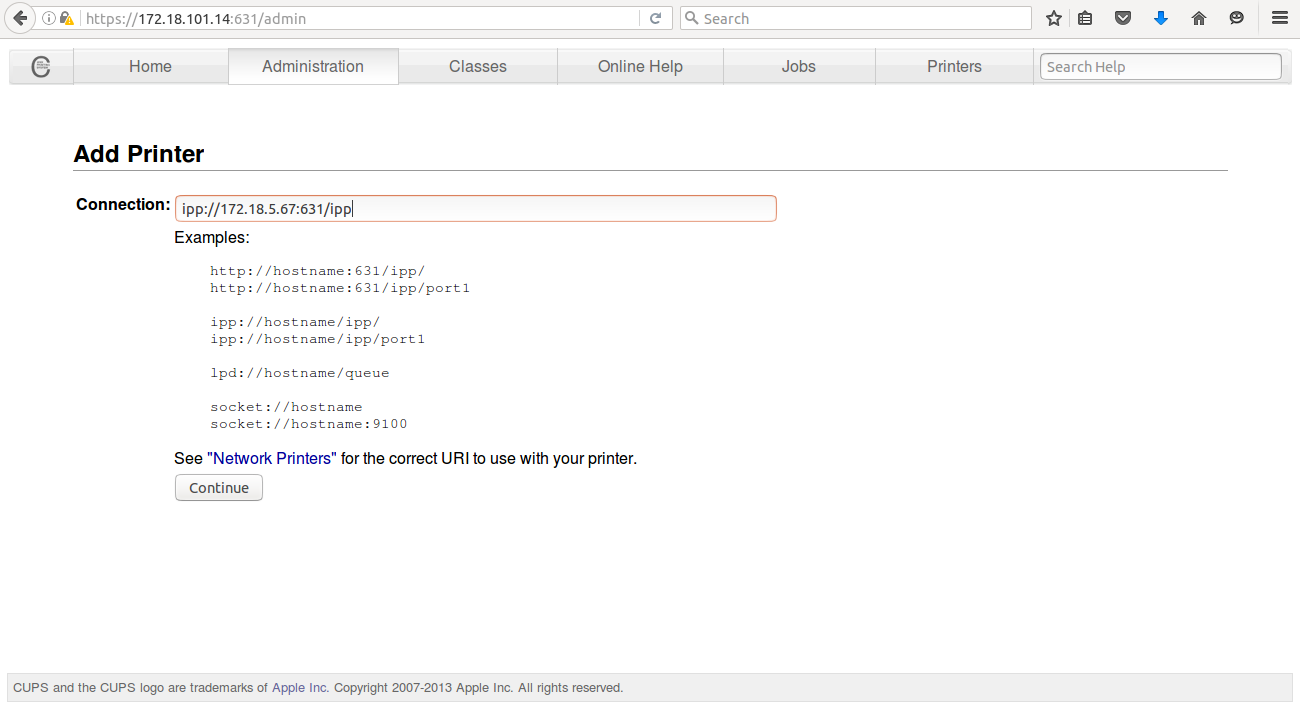
4. In connection tab type the ipp://172.18.5.67:631/ipp (172.18.5.67 is printer IP) and click Continue.
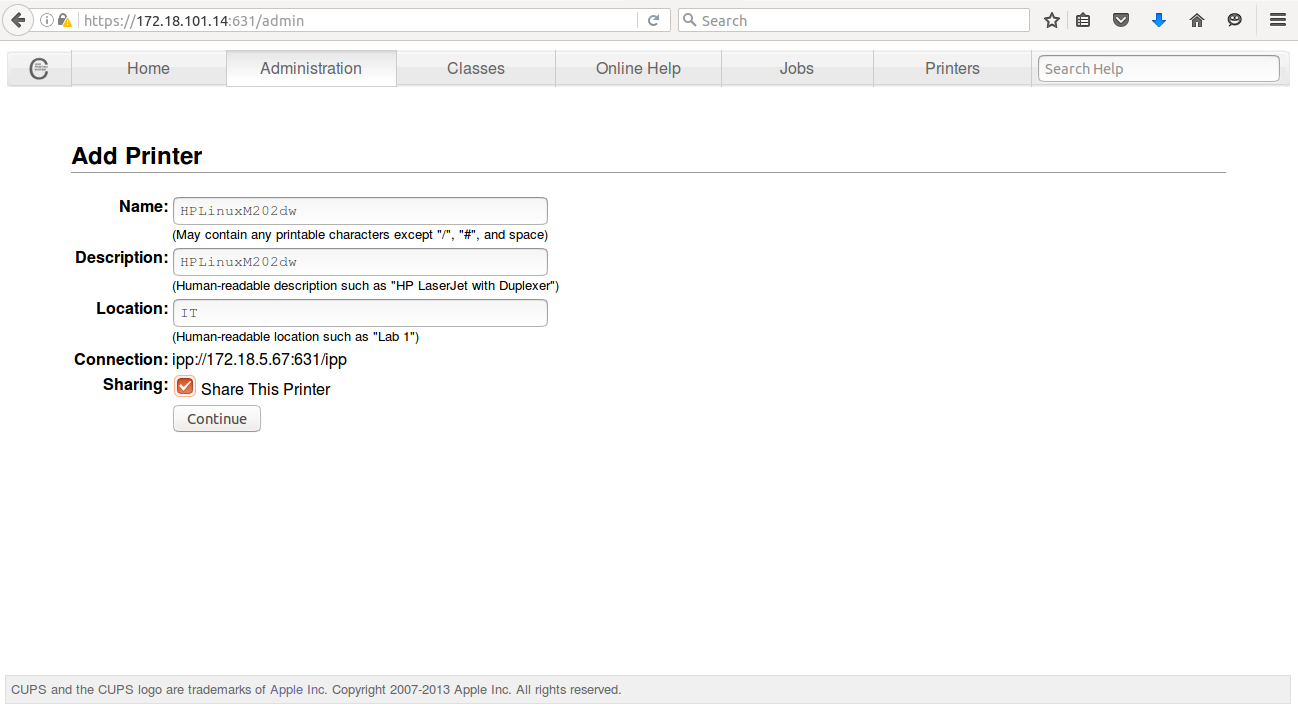
5. Fill the required information and click on “Share This Printer “ and click on “Continue”.
6. Select the “Generic” print driver and click on “continue”.
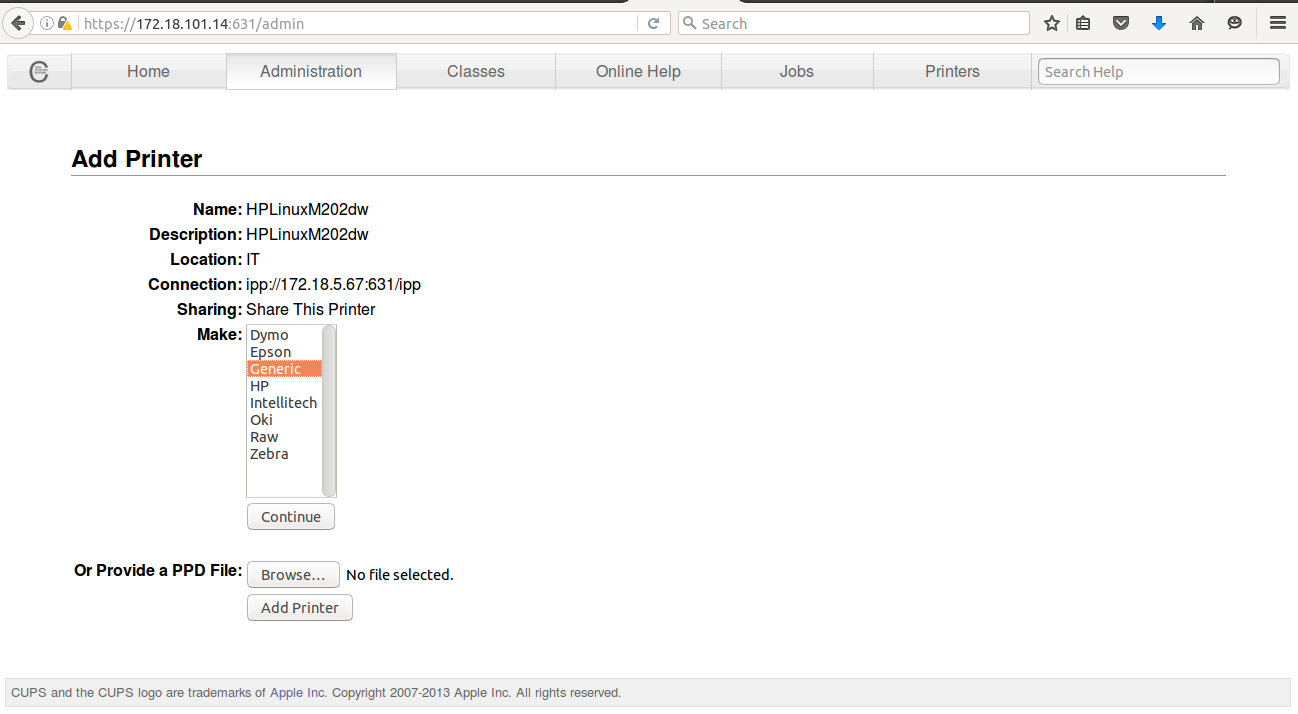
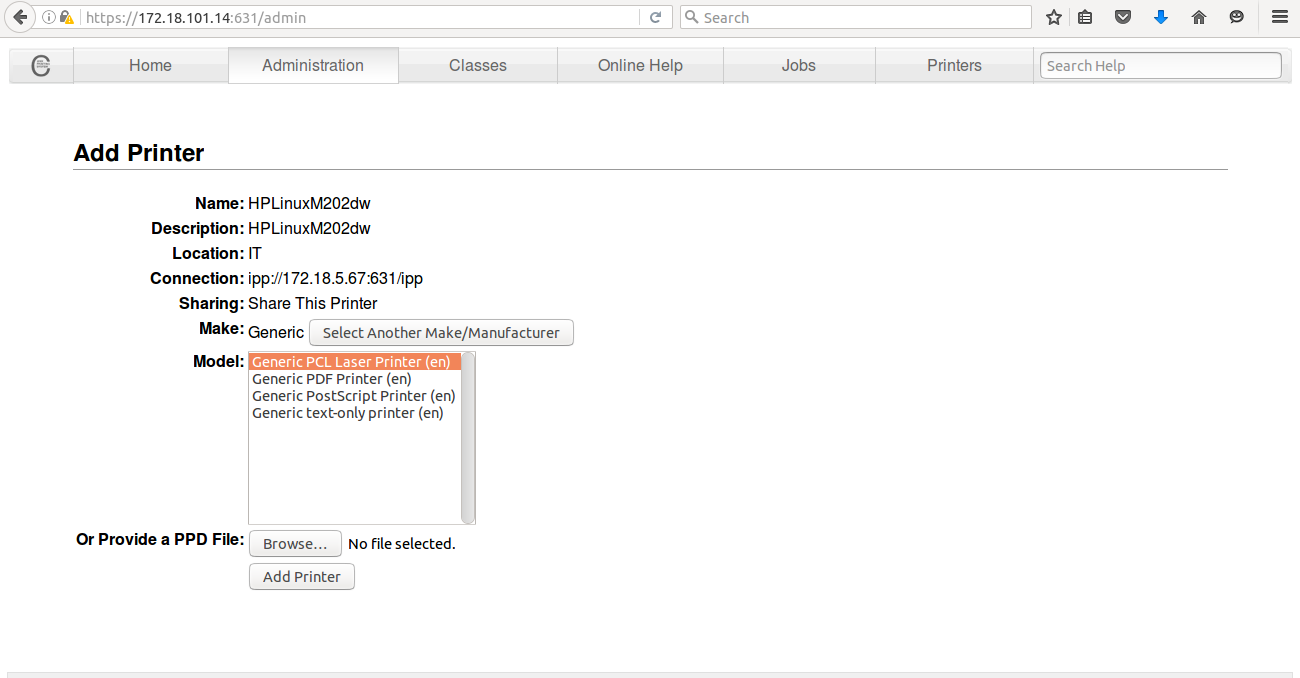
7. Select the model “Generic PCL Laser Printer(en)” and click on “Add Printer”.
Now printer configuration has been done.
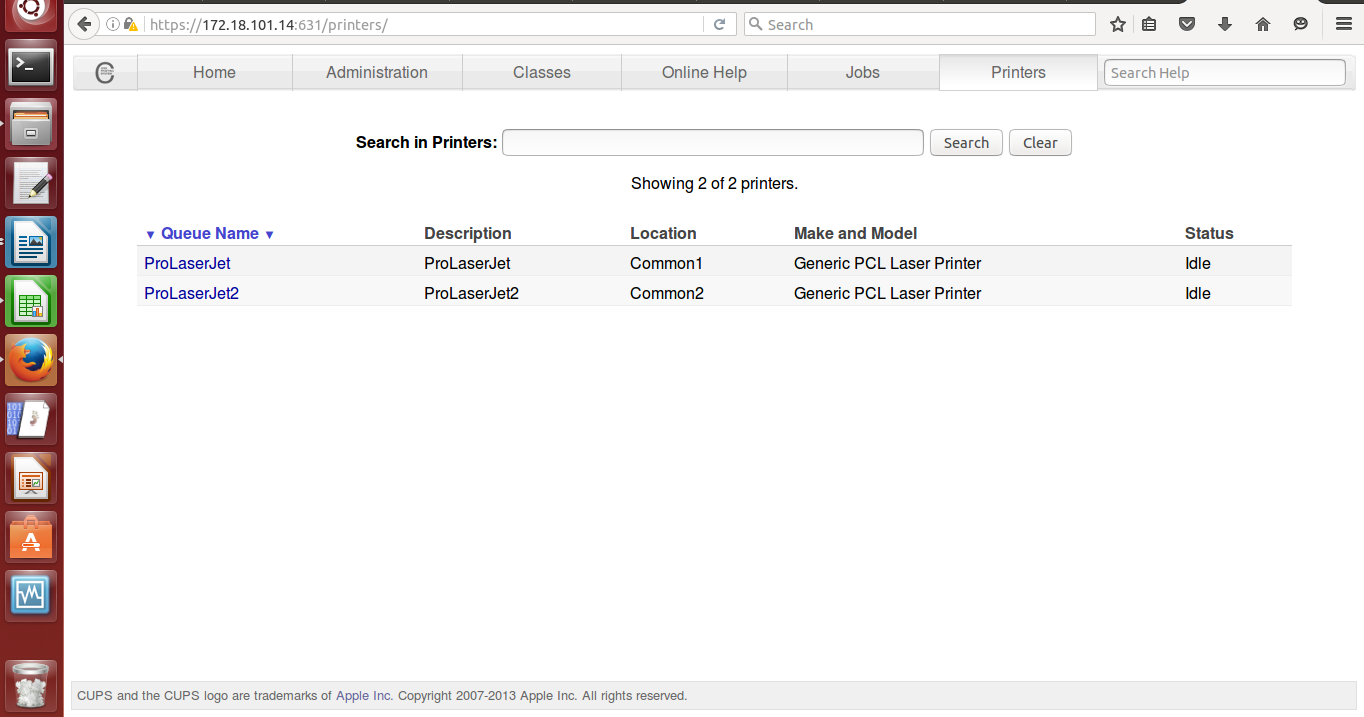
== Testing printer (Print test page). ==
1. Click on “Printers” tab. Here we can see the installed printers click on printer which we want to test.
2. Click on “Maintenance” and select “Print Test Page”.
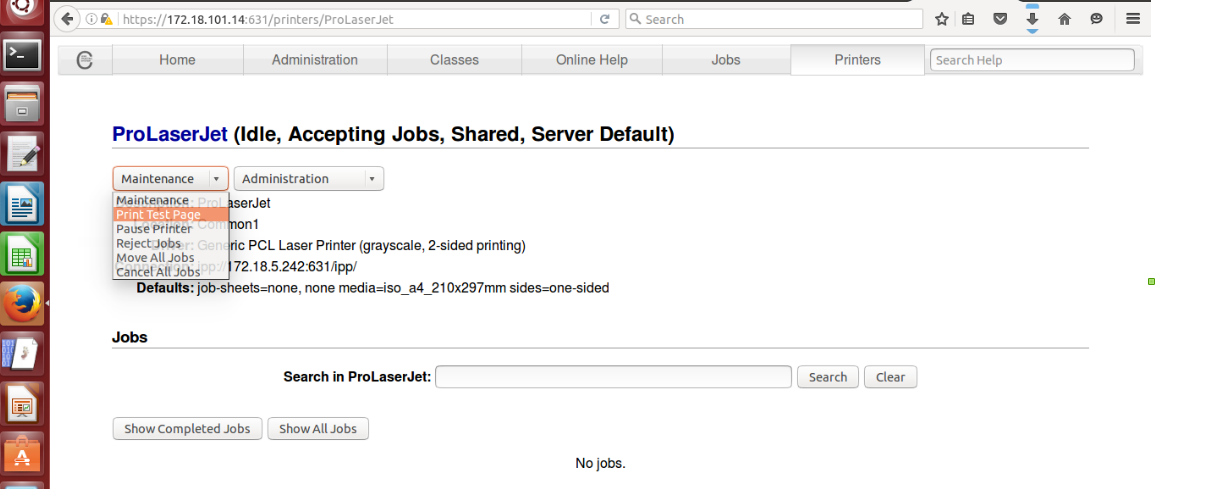
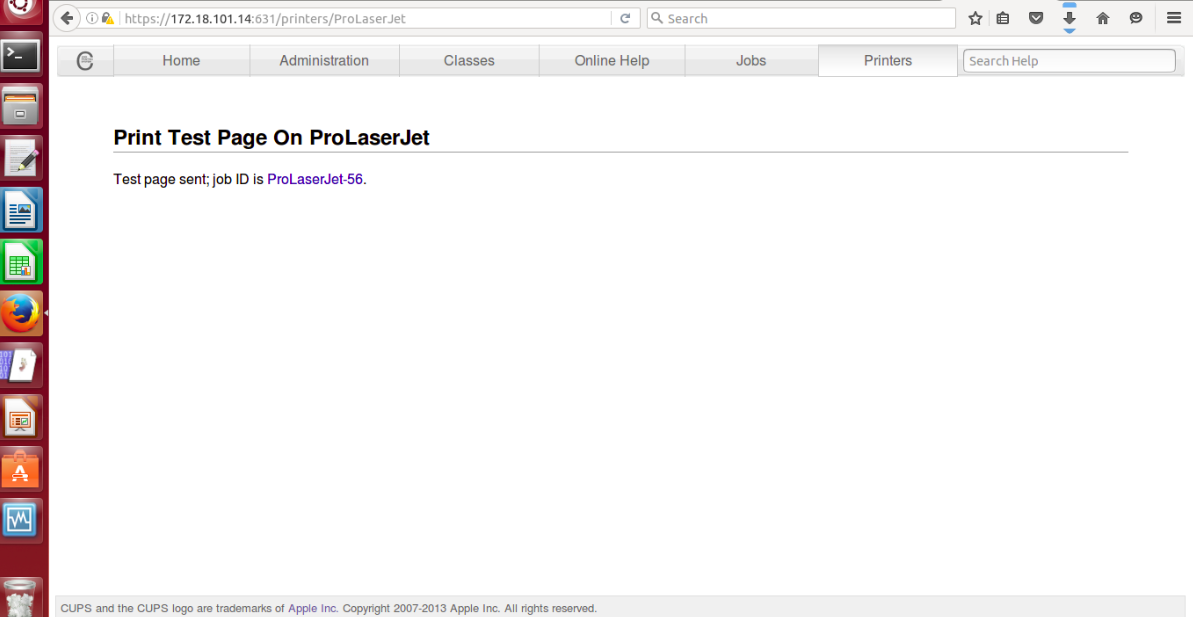
3. Page will say that “Test page sent:”
== CUPS Integration with Samba. ==
To integrate cups with samba we can follow below steps.
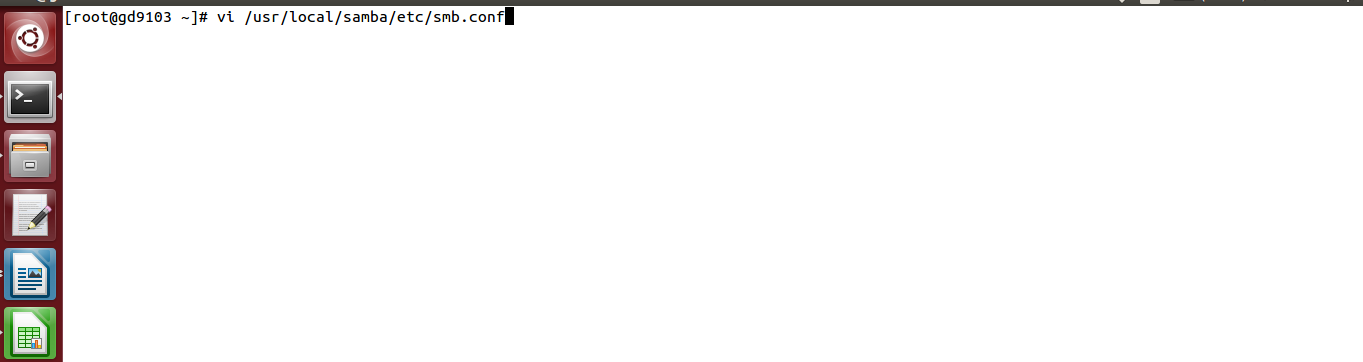
1. Open “/usr/local/samba/etc/smb.conf” file.
# vi /usr/local/samba/etc/smb.conf
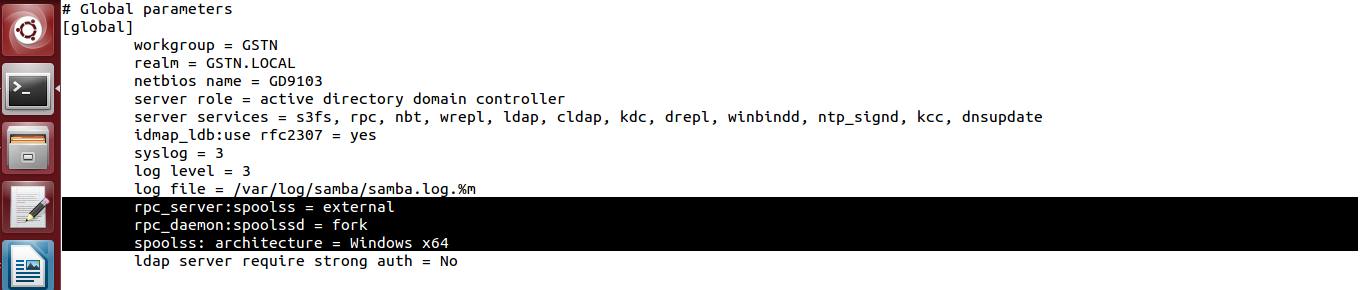
2. Make below entry in smb.conf file in Global section.
rpc_server:spoolss = external
rpc_daemon:spoolssd = fork
spoolss: architecture = Windows x64
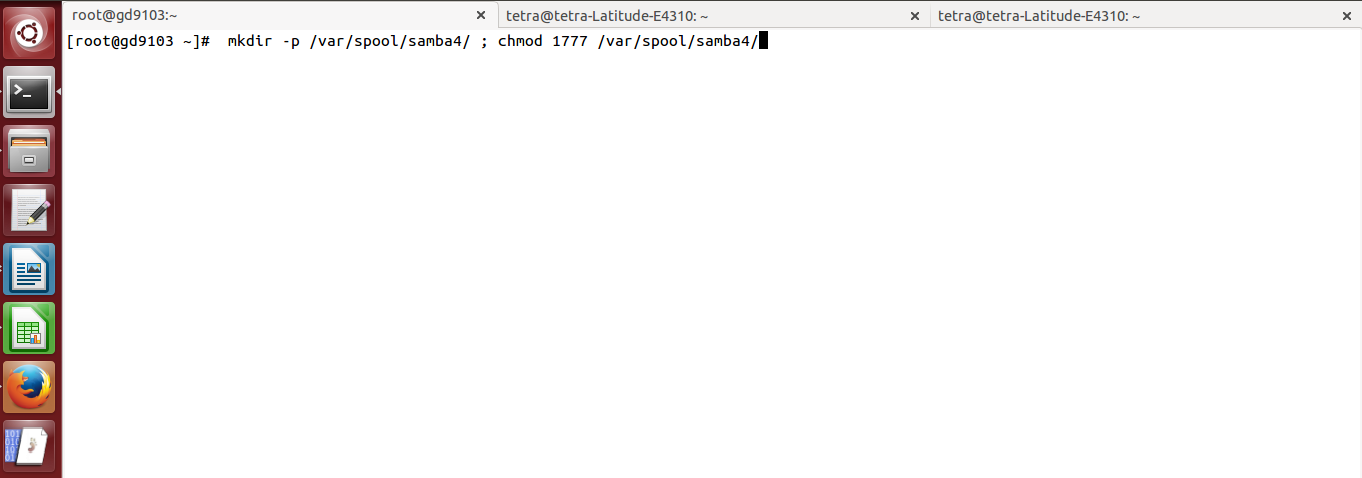
3. Create the Samba spool directory and set permission.
# mkdir -p /var/spool/samba4/ ; chmod 1777 /var/spool/samba4/
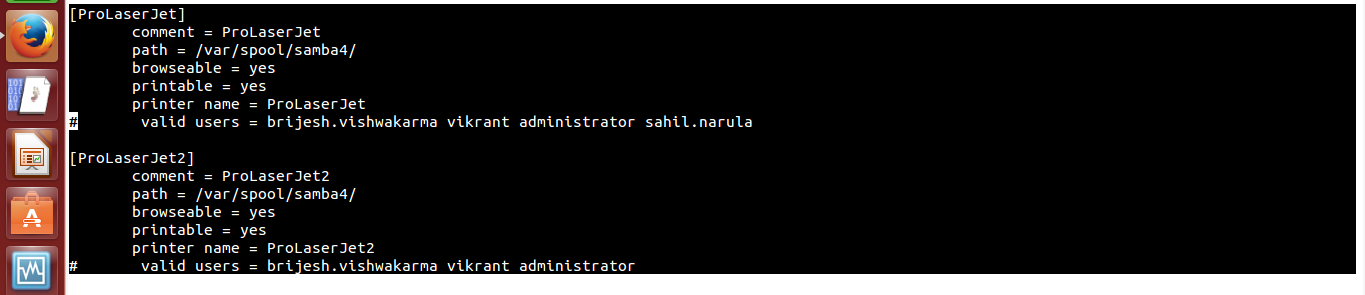
4. Open again /usr/local/samba/etc/smb.conf file and make below entries.
[ProLaserJet]
comment = ProLaserJet
path = /var/spool/samba4/
browseable = yes
printable = yes
printer name = ProLaserJet
[ProLaserJet2]
comment = ProLaserJet2
path = /var/spool/samba4/
browseable = yes
printable = yes
printer name = ProLaserJet2
5. Restart samba service.
# systemctl stop samba4.service

# systemctl start samba4.service



