
LAM PRO AT PUNJAB GOVT: Difference between revisions
No edit summary |
|||
| (One intermediate revision by the same user not shown) | |||
| Line 135: | Line 135: | ||
Please point your browser to the location where you installed LAM. E.g. http://192.168.10.93/lam. You should see the following page | Please point your browser to the location where you installed LAM. E.g. http://192.168.10.93/lam. You should see the following page | ||
[[Image:]] | [[Image:lampro2.png]] | ||
Now you are ready to configure LAM. Click on the "LAM configuration" link to proceed. | Now you are ready to configure LAM. Click on the "LAM configuration" link to proceed. | ||
<center>[[Image:]]</center> | <center>[[Image:lampro3.png]]</center> | ||
== General settings == | == General settings == | ||
| Line 153: | Line 153: | ||
Select "Manage server profiles" to open the profile management page. Password is your default password “lam” , if you changed your master password then enter this. | Select "Manage server profiles" to open the profile management page. Password is your default password “lam” , if you changed your master password then enter this. | ||
<center>[[Image:]]</center> | <center>[[Image:lampro4.png]]</center> | ||
Here you can create, rename and delete server profiles. The [http://www.ldap-account-manager.org/static/doc/manual/apb.html#a_configPasswords passwords] of your server profiles can also be reset. | Here you can create, rename and delete server profiles. The [http://www.ldap-account-manager.org/static/doc/manual/apb.html#a_configPasswords passwords] of your server profiles can also be reset. | ||
| Line 159: | Line 159: | ||
You may also specify the default server profile. This is the server profile which is preselected at the login page. It also specifies the language of the login and configuration pages. | You may also specify the default server profile. This is the server profile which is preselected at the login page. It also specifies the language of the login and configuration pages. | ||
<center>[[Image:]]</center> | <center>[[Image:lampro5.png]]</center> | ||
You can create a new server profile by simply entering its name and password. After you created a new profile you can go back to the profile login and edit your new server profile. | You can create a new server profile by simply entering its name and password. After you created a new profile you can go back to the profile login and edit your new server profile. | ||
| Line 168: | Line 168: | ||
Please select you server profile and enter its password to edit a server profile. | Please select you server profile and enter its password to edit a server profile. | ||
<center>[[Image:]]</center> | <center>[[Image:lampro6.png]]</center> | ||
Each server profile contains the following information: | Each server profile contains the following information: | ||
| Line 180: | Line 180: | ||
Here you can specify the LDAP server and some security settings. | Here you can specify the LDAP server and some security settings. | ||
<center>[[Image:]]</center> | <center>[[Image:lampro7.png]]</center> | ||
The server address of your LDAP server can be a DNS name or an IP address. Use ldap:// for LDAP connections LAM includes an LDAP browser which allows direct modification of LDAP entries. If you would like to use it then enter the LDAP suffix at "Tree suffix". | The server address of your LDAP server can be a DNS name or an IP address. Use ldap:// for LDAP connections LAM includes an LDAP browser which allows direct modification of LDAP entries. If you would like to use it then enter the LDAP suffix at "Tree suffix". | ||
| Line 190: | Line 190: | ||
LAM is translated to many different languages. Here you can select the default language for this server profile. The language setting may be overridden at the LAM login page. | LAM is translated to many different languages. Here you can select the default language for this server profile. The language setting may be overridden at the LAM login page. | ||
<center>[[Image:]]</center> | <center>[[Image:lampro8.png]]</center> | ||
LAM can manage user home directories and quotas with an external script. You can specify the home directory server and where the script is located. The default rights for new home directories can be set, too. | LAM can manage user home directories and quotas with an external script. You can specify the home directory server and where the script is located. The default rights for new home directories can be set, too. | ||
<center>[[Image:]]</center> | <center>[[Image:lampro9.png]]</center> | ||
You may also change the password of this server profile. Please just enter the new password in both password fields. | You may also change the password of this server profile. Please just enter the new password in both password fields. | ||
| Line 201: | Line 201: | ||
LAM supports to manage various types of LDAP entries (e.g. users, groups, DHCP entries, ...). On this page you can select which types of entries you want to manage with LAM. | LAM supports to manage various types of LDAP entries (e.g. users, groups, DHCP entries, ...). On this page you can select which types of entries you want to manage with LAM. | ||
<center>[[Image:]]</center> | <center>[[Image:lampro10.png]]</center> | ||
The section at the top shows a list of possible types. You can activate them by simply clicking on the plus sign next to it. | The section at the top shows a list of possible types. You can activate them by simply clicking on the plus sign next to it. | ||
| Line 210: | Line 210: | ||
* '''List attributes:''' a list of attributes which are shown in the account lists | * '''List attributes:''' a list of attributes which are shown in the account lists | ||
<center>[[Image:]]</center> | <center>[[Image:lampro11.png]]</center> | ||
==== Modules ==== | ==== Modules ==== | ||
The modules specify the active extensions for each account type. E.g. here you can setup if your user entries should be address book entries only or also support Unix or Samba. | The modules specify the active extensions for each account type. E.g. here you can setup if your user entries should be address book entries only or also support Unix or Samba. | ||
<center>[[Image:]]</center> | <center>[[Image:lampro12.png]]</center> | ||
Each account type needs a so called "base module". This is the basement for all LDAP entries of this type. Usually, it provides the structural object class for the LDAP entries. There must be exactly one active base module for each account type. | Each account type needs a so called "base module". This is the basement for all LDAP entries of this type. Usually, it provides the structural object class for the LDAP entries. There must be exactly one active base module for each account type. | ||
| Line 224: | Line 224: | ||
Depending on the activated account modules there may be additional configuration options available. They can be found on the "Module settings" tab. E.g. the Personal account module allows to hide several input fields and the Unix module requires to specify ranges for UID numbers. | Depending on the activated account modules there may be additional configuration options available. They can be found on the "Module settings" tab. E.g. the Personal account module allows to hide several input fields and the Unix module requires to specify ranges for UID numbers. | ||
<center>[[Image:]]</center> | <center>[[Image:lampro13.png]]</center> | ||
'''Basic page layout:''' | '''Basic page layout:''' | ||
| Line 234: | Line 234: | ||
When you login the you will see an account listing in the content area. | When you login the you will see an account listing in the content area. | ||
[[Image:]] | [[Image:lampro14.png]] | ||
Here you can create, delete and modify accounts. Use the action buttons at the left or double click on an entry to edit it. | Here you can create, delete and modify accounts. Use the action buttons at the left or double click on an entry to edit it. | ||
| Line 242: | Line 242: | ||
When you select to edit an entry then LAM will show all its data on a tabbed view. There is one tab for each functional part of the account. You can set default values by loading an [http://www.ldap-account-manager.org/static/doc/manual/ch04.html#a_accountProfile account profile]. | When you select to edit an entry then LAM will show all its data on a tabbed view. There is one tab for each functional part of the account. You can set default values by loading an [http://www.ldap-account-manager.org/static/doc/manual/ch04.html#a_accountProfile account profile]. | ||
[[Image:]] | [[Image:lampro15.png]] | ||
== Users == | == Users == | ||
| Line 254: | Line 254: | ||
The Unix module manages Unix user accounts including group memberships | The Unix module manages Unix user accounts including group memberships | ||
[[Image:]] | [[Image:lampro16.png]] | ||
'''Groups''' | '''Groups''' | ||
[[Image:]] | [[Image:lampro17.png]] | ||
=== Unix === | === Unix === | ||
| Line 265: | Line 265: | ||
If you click to edit the group then, | If you click to edit the group then, | ||
[[Image:]] | [[Image:lampro18.png]] | ||
=== Samba 3 === | === Samba 3 === | ||
| Line 276: | Line 276: | ||
Please activate the account type "Samba domains" in your LAM server profile. Please notice that Samba by default uses the LDAP root for domain objects (e.g. dc=pjbifmsiwdms,dc=pjb). | Please activate the account type "Samba domains" in your LAM server profile. Please notice that Samba by default uses the LDAP root for domain objects (e.g. dc=pjbifmsiwdms,dc=pjb). | ||
[[Image:]] | [[Image:lampro19.png]] | ||
'''Usage''' | '''Usage''' | ||
| Line 284: | Line 284: | ||
# Login your lam through browser and enter your master password. | # Login your lam through browser and enter your master password. | ||
[[Image:]] | [[Image:lampro20.png]] | ||
# Then click on the New user for adding new user and enter the “Personal” information (eg. First Name, Last Name , Address etc.), You also delete user from “Delete User” tab. | # Then click on the New user for adding new user and enter the “Personal” information (eg. First Name, Last Name , Address etc.), You also delete user from “Delete User” tab. | ||
[[Image:]] | [[Image:lampro21.png]] | ||
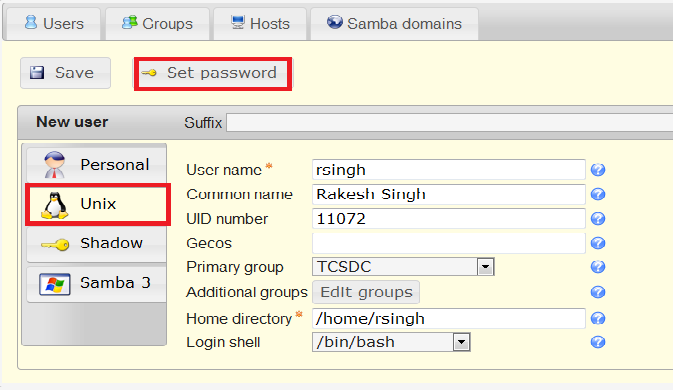
# Now in the “Unix” module manages Unix user accounts including group memberships, [[Image:]] | # Now in the “Unix” module manages Unix user accounts including group memberships, [[Image:lampro22.png]] | ||
here you also set password for user , if set password then click on set password tab. | here you also set password for user , if set password then click on set password tab. | ||
| Line 301: | Line 301: | ||
This module is used to manage Unix group entries. This is the default module to manage Unix groups and uses the nis.schema. | This module is used to manage Unix group entries. This is the default module to manage Unix groups and uses the nis.schema. | ||
<center>[[Image:]]</center> | <center>[[Image:lampro23.png]]</center> | ||
# Now you you want to add or remove members from this group then Click Edit members | # Now you you want to add or remove members from this group then Click Edit members | ||
<center>[[Image:]]</center> | <center>[[Image:lampro24.png]]</center> | ||
Here, two fields are there Selected users and Available users, Selected users are those users that is already in the group, and Available users contains the list of available users in the directory server. | Here, two fields are there Selected users and Available users, Selected users are those users that is already in the group, and Available users contains the list of available users in the directory server. | ||
Latest revision as of 13:46, 27 November 2012
Installation and Configuration of LDAP ACCOUNT MANAGER (LAM) at Punjab Govt[edit]
Overview3
Key Features3
Requirements3
Architecture4
Installation5
Configuration6
Usage16
Overview
LDAP Account Manager (LAM) manages user, group and host accounts in an LDAP directory. LAM runs on any webserver with PHP5 support and connects to your LDAP server unencrypted or via SSL/TLS.
Key-Features
- Managing user/Group/Host/Domain entries
- Account profiles
- Account creation via file upload
- Multiple configuration profiles
- LDAP browser
- Schema browser
- OU editor
- PDF export for all accounts
- Manage user/Group Quota and create home directories
Requirements
LAM has the following requirements to run:
1)Apache webserver (SSL recommended) with PHP module (PHP 5 (>= 5.2.4) with ldap, gettext, xml and optional mcrypt)
2)Some LAM plugins may require additional PHP extensions
3)FDS(Fedora Directory Service)
4)A recent web browser that supports CSS2 and JavaScript, at minimum:
- Firefox 3
- Internet Explorer 8 (compatibility mode turned off)
- Opera 10
5)MCrypt will be used to store your LDAP password encrypted in the session file.
Architecture
There are basically two groups of users for LAM:
LDAP administrators and support staff:
These people administer LDAP entries like user accounts, groups, ...
Users:
This includes all people who need to manage their own data inside the LDAP directory. E.g. these people edit their contact information with LAM self service (LAM Pro).

Therefore, LAM is split into two separate parts, LAM for admins and for users. LAM for admins allows to manage various types of LDAP entries (e.g. users, groups, hosts z, ...). It also contains tools like batch upload, account profiles, LDAP schema viewer and an LDAP browser. LAM for users focuses on end users. It provides a self service for the users to edit their personal data (e.g. contact information). The LAM administrator is able to specify what data may be changed by the users.
LAM for admins/users is accessible via HTTP(S) by all major web browsers (Firefox, IE, Opera, ...).
LAM runtime environment:
LAM runs on PHP. Therefore, it is independent of CPU architecture and operating system (OS). You can run LAM on any OS which supports Apache or other PHP compatible web servers.
Home directory server:
You can manage user home directories and their quotas inside LAM. The home directories may reside on the server where LAM is installed or any remote server. The commands for home directory management are secured by SSH. LAM will use the user name and password of the logged in LAM administrator for authentication.
LDAP directory:
LAM connects to your LDAP server via standard LDAP protocol. It also supports encrypted connections with SSL and TLS.
Installation
- Install the packages through yum
#yum install php-gettext php-xml php-ldap
- For ldap-mcrypt package download epel rpm in /etc/yum.repos.d from the link.
http://download.fedoraproject.org/pub/epel/6/i386/epel-release-6-5.noarch.rpm
Now #yum install php-mcrypt
- Now download the ldap package from the link
http://sourceforge.net/projects/lam/files/LAM/3.6/ldap-account-manager-3.6.tar.gz/download
- Now extract this package then open this folder
Install the files[edit]
Manual copy[edit]
Copy the files into the html-file scope of the web server. For example /var/www/html.
Then set the appropriate file permissions:
- lam/sess: write permission for apache user
- lam/tmp: write permission for apache user
- lam/config (with subdirectories): write permission for apache user
- lam/lib: lamdaemon.pl must be set executable
With configure script[edit]
Instead of manually copying files you can also use the included configure script to install LAM. Just run these commands in the extracted directory:
Options for "./configure":
- --with-httpd-user=apache , apache is the name of your Apache user account in RHEL6
- --with-httpd-group=apache ,apache is the name of your Apache group in RHEL6
- --with-web-root=/var/www/html, apache is the name where LAM should be installed (/var/www/html)
#./configure --with-httpd-user=apache --with-httpd-group=apache --with-web-root=/var/www/html/
# make install
Now start the httpd service
Configuration
After you installed LAM you can configure it to fit your needs. The complete configuration can be done inside the application. There is no need to edit configuration files.
Please point your browser to the location where you installed LAM. E.g. http://192.168.10.93/lam. You should see the following page

Now you are ready to configure LAM. Click on the "LAM configuration" link to proceed.

General settings[edit]
After selecting "Edit general settings" you will need to enter the master configuration password. The default password for new installations is "lam". Now you can edit the general settings.
Change master password[edit]
If you would like to change the master configuration password then enter a new password here.
Server profiles[edit]
The server profiles store information about your LDAP server (e.g. ldap://192.168.10.98:389) and what kind of accounts (e.g. users and groups) you would like to manage. There is no limit on the number of server profiles.
Manage server profiles[edit]
Select "Manage server profiles" to open the profile management page. Password is your default password “lam” , if you changed your master password then enter this.

Here you can create, rename and delete server profiles. The passwords of your server profiles can also be reset.
You may also specify the default server profile. This is the server profile which is preselected at the login page. It also specifies the language of the login and configuration pages.

You can create a new server profile by simply entering its name and password. After you created a new profile you can go back to the profile login and edit your new server profile.
All operations on the profile management page require that you authenticate yourself with the configuration master password.
Editing a server profile[edit]
Please select you server profile and enter its password to edit a server profile.

Each server profile contains the following information:
- General settings: general settings about your LDAP server (e.g. host name and security settings)
- Account types: list of account types (e.g. users and groups) that you would like to manage and type specific settings (e.g. LDAP suffix)
- Modules: list of modules which define what account aspects (e.g. Unix, Samba, Kolab) you would like to manage
- Module settings: settings which are specific for the selected account modules on the page before
General settings[edit]
Here you can specify the LDAP server and some security settings.

The server address of your LDAP server can be a DNS name or an IP address. Use ldap:// for LDAP connections LAM includes an LDAP browser which allows direct modification of LDAP entries. If you would like to use it then enter the LDAP suffix at "Tree suffix".
The search limit is used to reduce the number of search results which are returned by your LDAP server.
The access level specifies if LAM should allow to modify LDAP entries. This feature is only available in LAM Pro. LAM non-Pro releases use write access. See this page for details on the different access levels.
LAM is translated to many different languages. Here you can select the default language for this server profile. The language setting may be overridden at the LAM login page.

LAM can manage user home directories and quotas with an external script. You can specify the home directory server and where the script is located. The default rights for new home directories can be set, too.

You may also change the password of this server profile. Please just enter the new password in both password fields.
Account types[edit]
LAM supports to manage various types of LDAP entries (e.g. users, groups, DHCP entries, ...). On this page you can select which types of entries you want to manage with LAM.

The section at the top shows a list of possible types. You can activate them by simply clicking on the plus sign next to it.
Each account type has the following options:
- LDAP suffix: the LDAP suffix where entries of this type should be managed
- List attributes: a list of attributes which are shown in the account lists

Modules[edit]
The modules specify the active extensions for each account type. E.g. here you can setup if your user entries should be address book entries only or also support Unix or Samba.

Each account type needs a so called "base module". This is the basement for all LDAP entries of this type. Usually, it provides the structural object class for the LDAP entries. There must be exactly one active base module for each account type.
Furthermore, there may be any number of additional active account modules. E.g. you may select "Personal" as base module and Unix + Samba as additional modules.
Module settings[edit]
Depending on the activated account modules there may be additional configuration options available. They can be found on the "Module settings" tab. E.g. the Personal account module allows to hide several input fields and the Unix module requires to specify ranges for UID numbers.

Basic page layout:
After the login LAM will present you its main page. It consists of a header part which is equal for all pages and the content area which covers most the of the page.
The header part includes the links to manage all account types (e.g. users and groups) and open the tree view (LDAP browser). There is also the logout link and a tools entry.
When you login the you will see an account listing in the content area.

Here you can create, delete and modify accounts. Use the action buttons at the left or double click on an entry to edit it.
The suffix selection box allows you to list only the accounts which are located in a subtree of your LDAP directory.
When you select to edit an entry then LAM will show all its data on a tabbed view. There is one tab for each functional part of the account. You can set default values by loading an account profile.

Users[edit]
Personal[edit]
This module is the most common basis for user accounts in LAM. You can use it stand-alone to manage address book entries or in combination with Unix, Samba or other modules.
The Personal module provides support for managing various personal data of your users including mail addresses and telephone numbers. You can also add photos of your users. If you do not need to manage all attributes then you can deactivate them in your server profile.
Unix
The Unix module manages Unix user accounts including group memberships

Groups

Unix[edit]
This module is used to manage Unix group entries. This is the default module to manage Unix groups and uses the nis.schema.
If you click to edit the group then,

Samba 3[edit]
LAM supports managing Samba 3 groups. You can set special group types and also create Windows predefined groups like "Domain admins".
Samba Domains
Samba Domin stores information about its domain settings inside LDAP. This includes the domain name, its SID and some policies. You can manage all these attributes with LAM.
Please activate the account type "Samba domains" in your LAM server profile. Please notice that Samba by default uses the LDAP root for domain objects (e.g. dc=pjbifmsiwdms,dc=pjb).

Usage
How to Add/Delete/ users
- Login your lam through browser and enter your master password.

- Then click on the New user for adding new user and enter the “Personal” information (eg. First Name, Last Name , Address etc.), You also delete user from “Delete User” tab.

- Now in the “Unix” module manages Unix user accounts including group memberships,

here you also set password for user , if set password then click on set password tab.
How to Add/Modify Groups
- To ADD Login LAM and goto the Groups then click New Group
Unix[edit]
This module is used to manage Unix group entries. This is the default module to manage Unix groups and uses the nis.schema.

- Now you you want to add or remove members from this group then Click Edit members

Here, two fields are there Selected users and Available users, Selected users are those users that is already in the group, and Available users contains the list of available users in the directory server.